Clients
Adding a Client
Add a client once — their details, documents, notes, and reports stay attached to their profile forever.
Steps
1
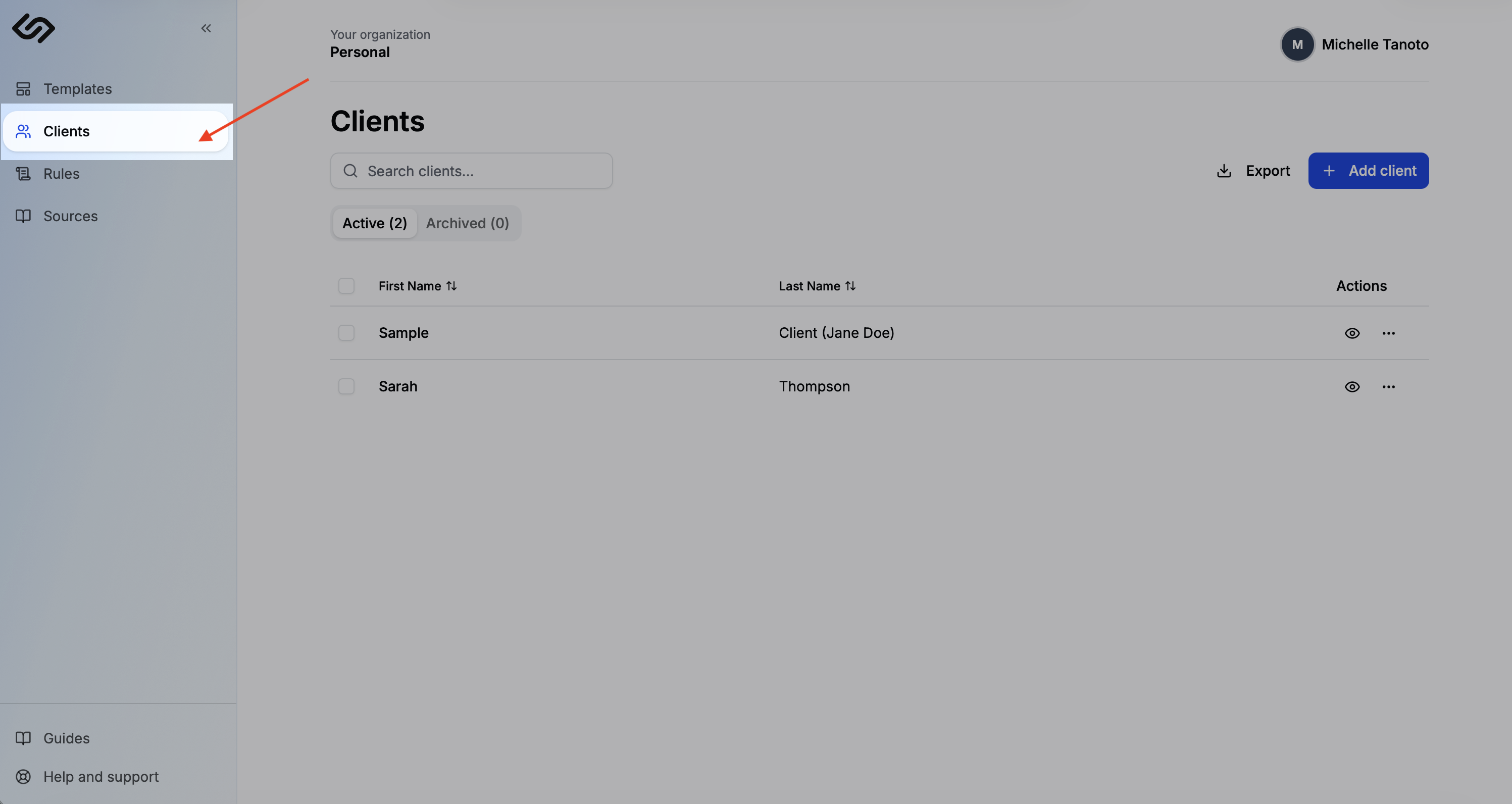
Open the Clients page
Click Clients in the sidebar.
2
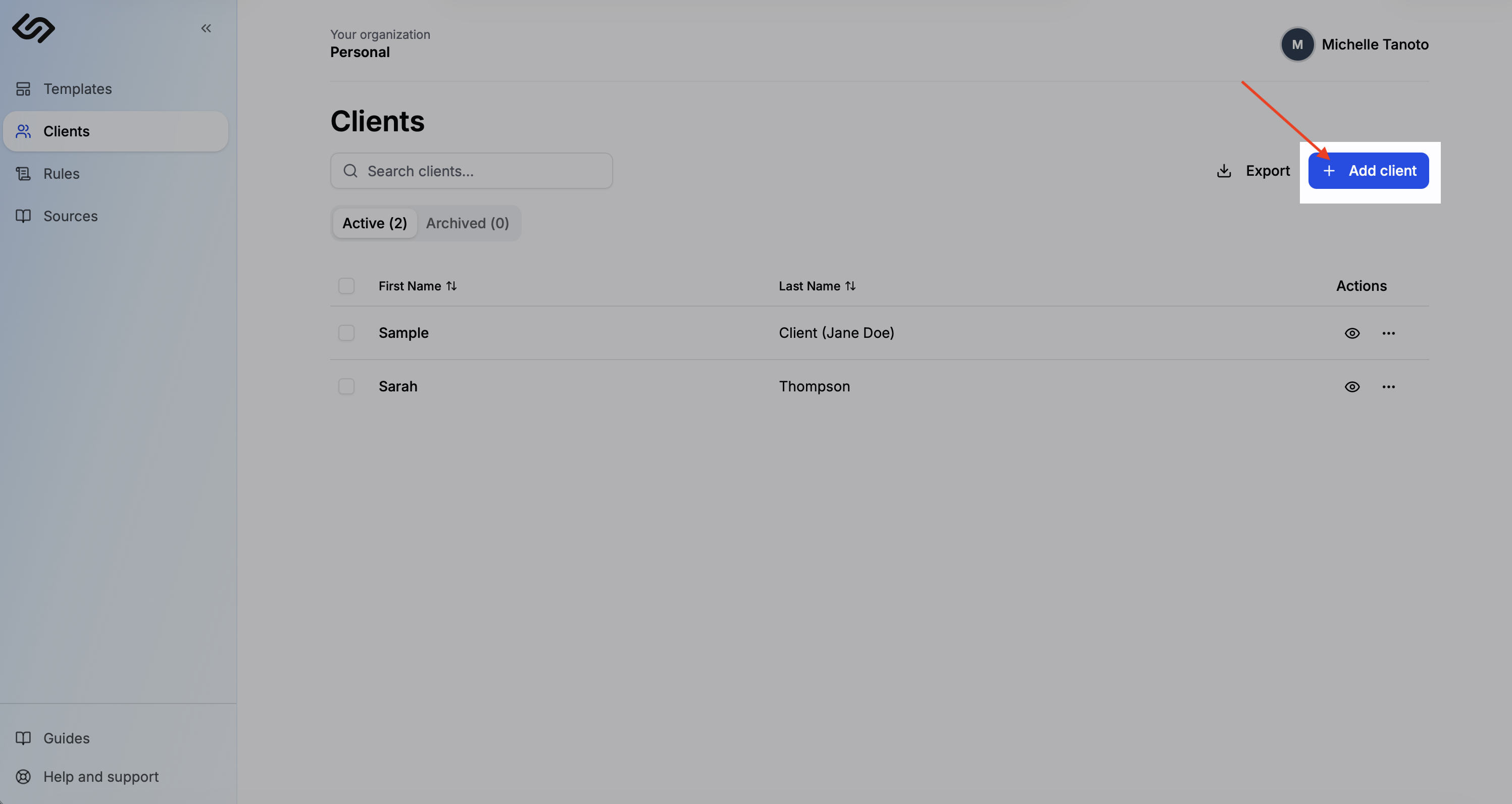
Click Add client
Enter a first name, last name, and optional note. That's it — you can start generating reports immediately.
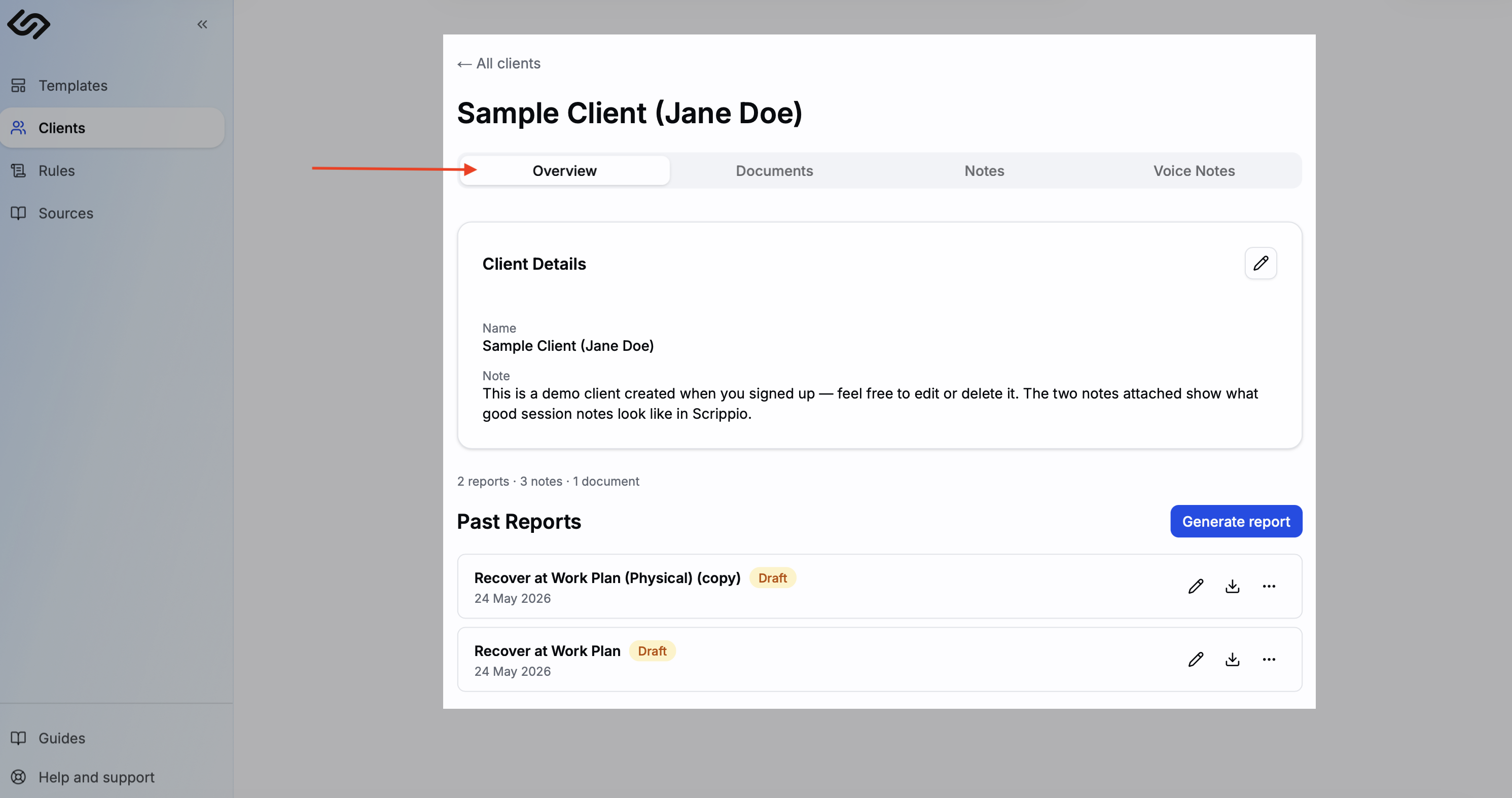
Client profile tabs
Each client profile has four tabs:
- Overview — client details, quick stats, and a list of all past reports with options to edit, download, or delete.
- Documents — upload files (.pdf, .docx, images, audio) that can be attached as context during report generation. See the Documents guide for details.
- Notes — brain dumps, session summaries, or anything else you want to capture. Attach them when generating reports as additional context. See the Notes guide for details.
- Voice Notes — recorded audio with transcripts. See the Voice Notes guide for details.