Context
Documents
Upload files to a client profile — past reports, referrals, assessments — and attach them as context when generating.
Documents give the AI something concrete to draw from beyond your session notes. The more relevant context it has, the more specific and accurate the output.
What to upload
Anything the AI might need to reference when writing a section. Common examples:
- Past reports — previous progress notes, FCEs, or capacity statements so the AI can reference prior findings and track change over time.
- Referral letters — the referring clinician's notes on presenting issues and what the report needs to address.
- Assessment results — standardised test scores, outcome measures, or functional assessments the AI should incorporate.
- NDIS or WorkCover documents — plan details, support categories, or capacity requirements relevant to the report.
- Client intake forms — background history, goals, and presenting issues collected at intake.
Supported file types
- PDF (.pdf)
- Word documents (.docx)
- Images (.jpg, .png)
- Audio files (.mp3, .mp4, .wav, .m4a)
Steps
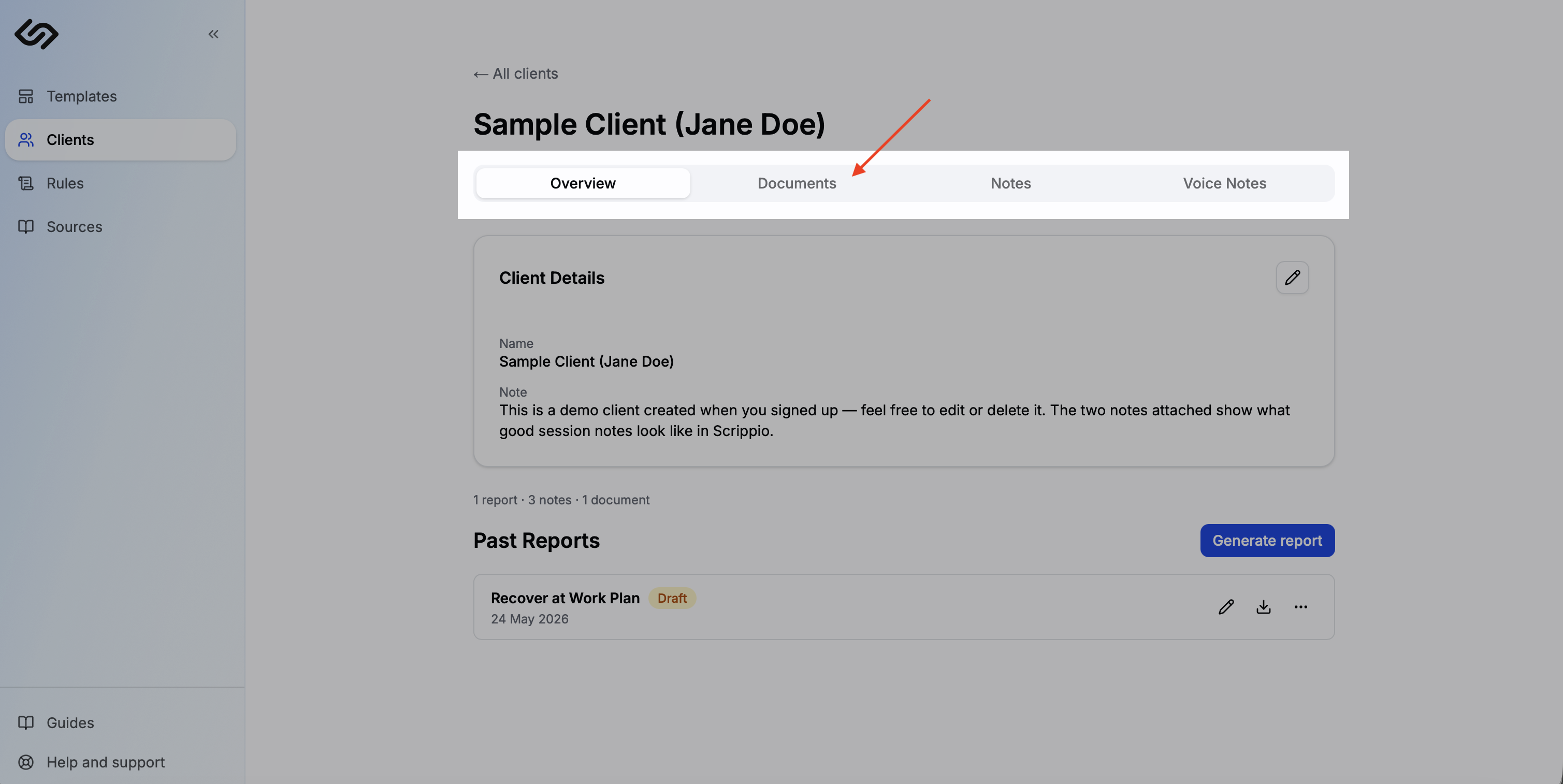
Open a client's Documents tab
Navigate to the client's profile and select the Documents tab.
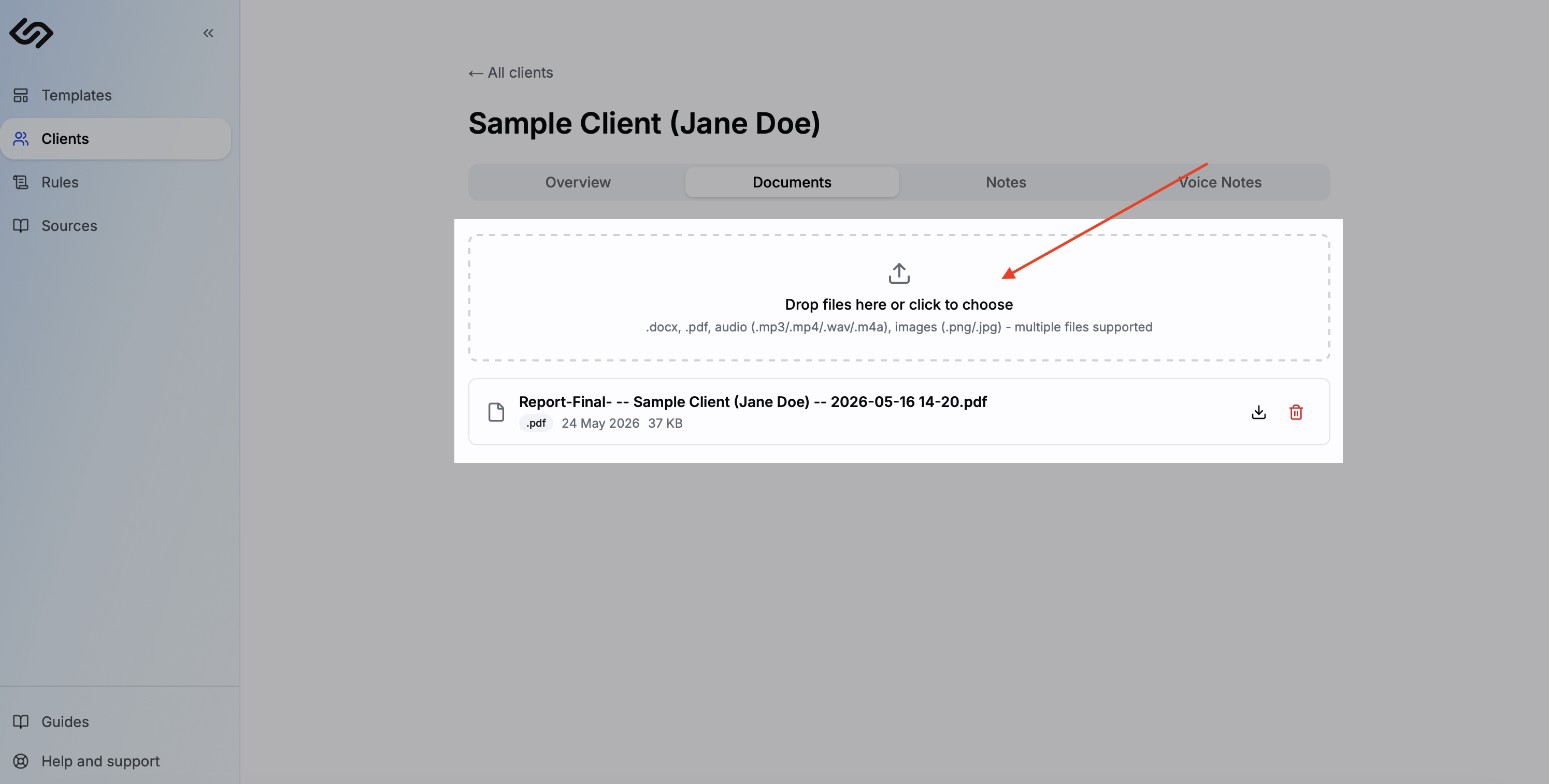
Upload a file
Click Upload document and select a file from your computer. The document is saved to the client's profile.
Attach it during generation
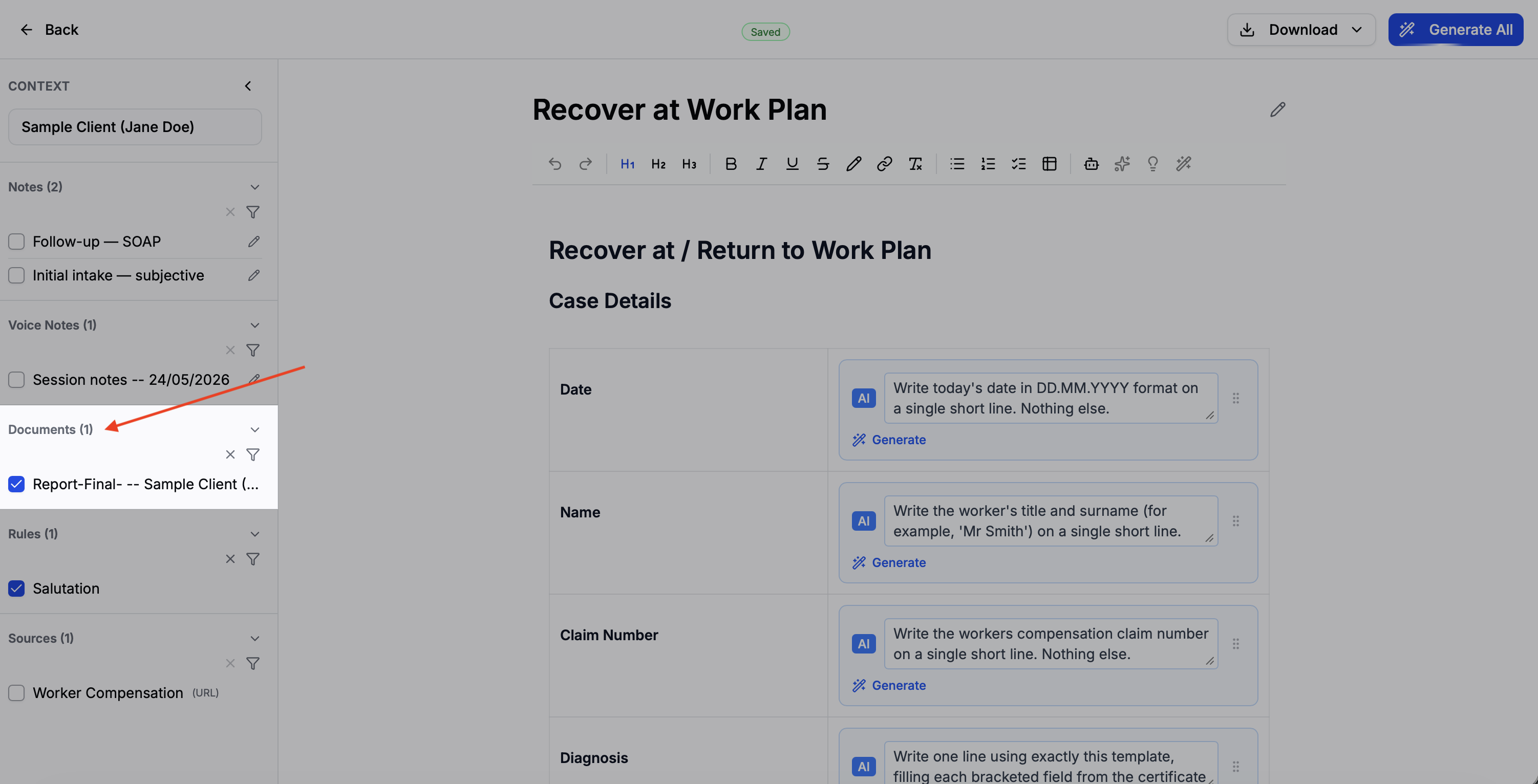
On the generate page, documents appear in the Attachments section of the context panel. Check the box next to any document to include it as context for that report.