Context
Notes
Write session summaries, observations, or anything else you want the AI to draw from — then attach them when generating.
Notes are free-text — write whatever is useful and attach the ones relevant to each report. They're separate from voice note transcripts, so they're useful for anything you want to type rather than record.
What to write
Anything the AI might need to draw from when writing a section. Common examples:
- Session summaries — what happened in the session, observations, client responses, functional performance.
- Goal progress — which goals were worked on, how the client is tracking, any barriers or breakthroughs.
- Pre-assessment notes — background context you gathered before the assessment that should inform the report.
- Observations and clinical reasoning — your clinical interpretation that you want the AI to incorporate rather than derive itself.
- Between-session observations — things the client or carer mentioned outside of a formal session that are relevant to the report.
- Brain dumps — unstructured thoughts are fine. Write whatever comes to mind and let the AI make sense of it.
Steps
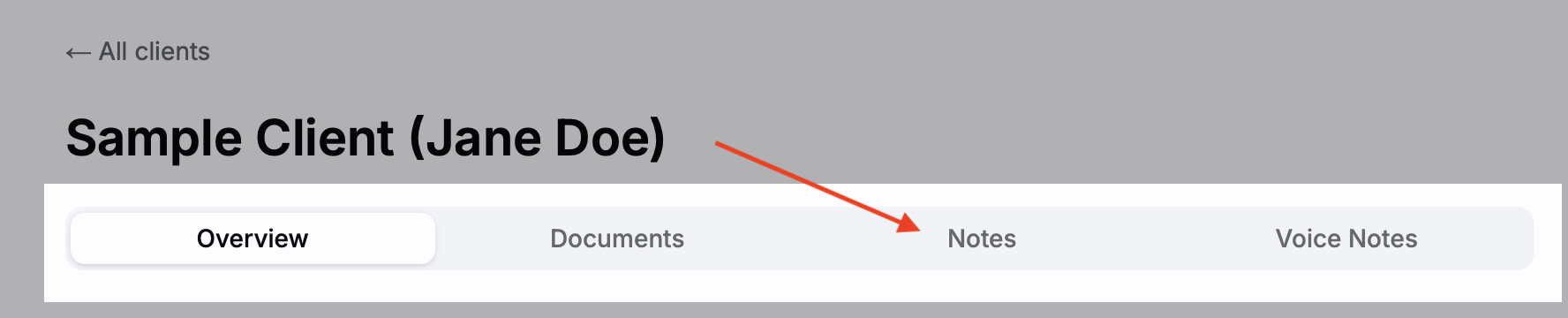
Open a client's Notes tab
Navigate to the client's profile and select the Notes tab.
Write a note
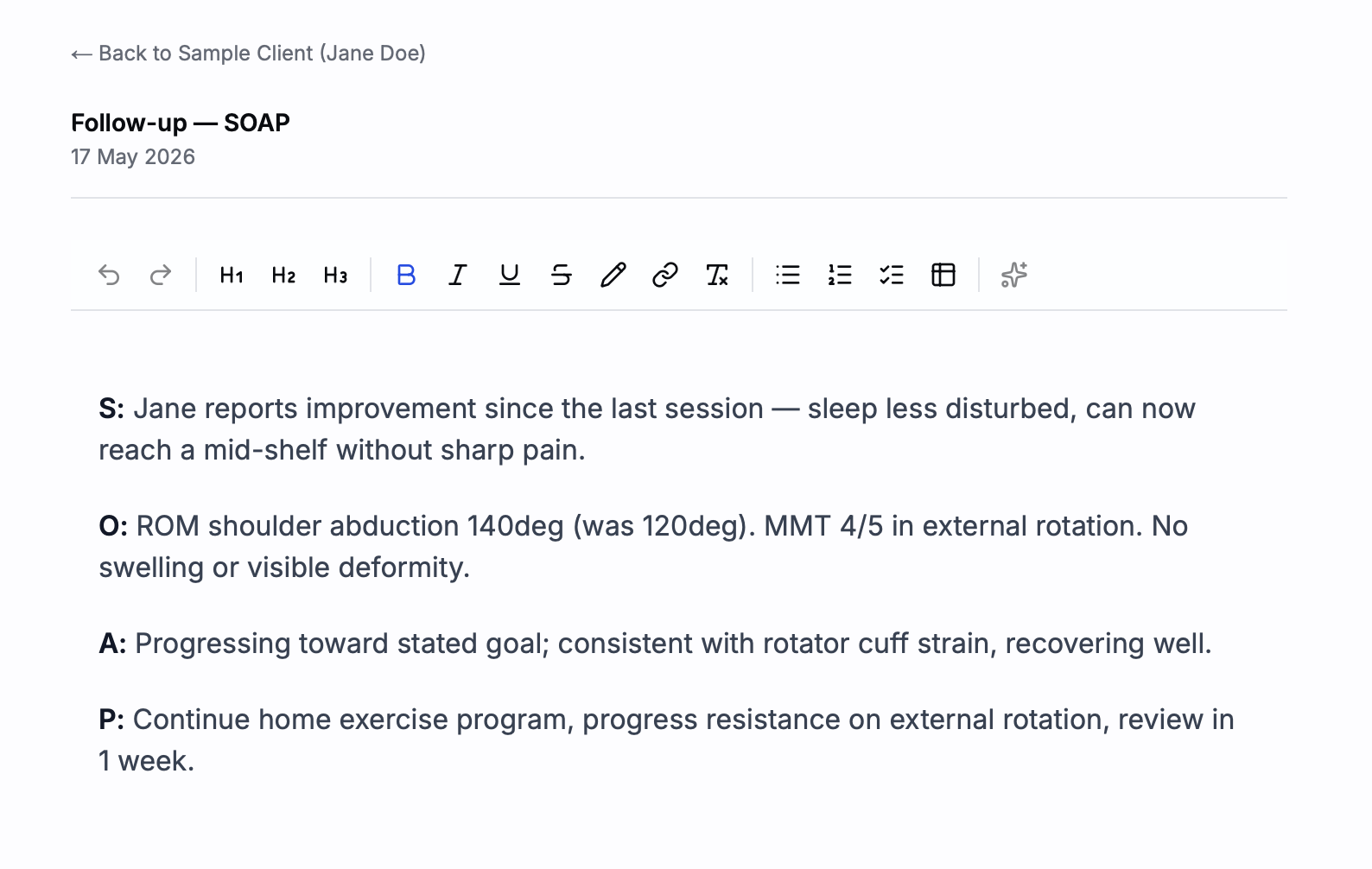
Click Add note. Give it a title and write your content. Notes support basic formatting — headings, lists, bold text.
Attach it during generation
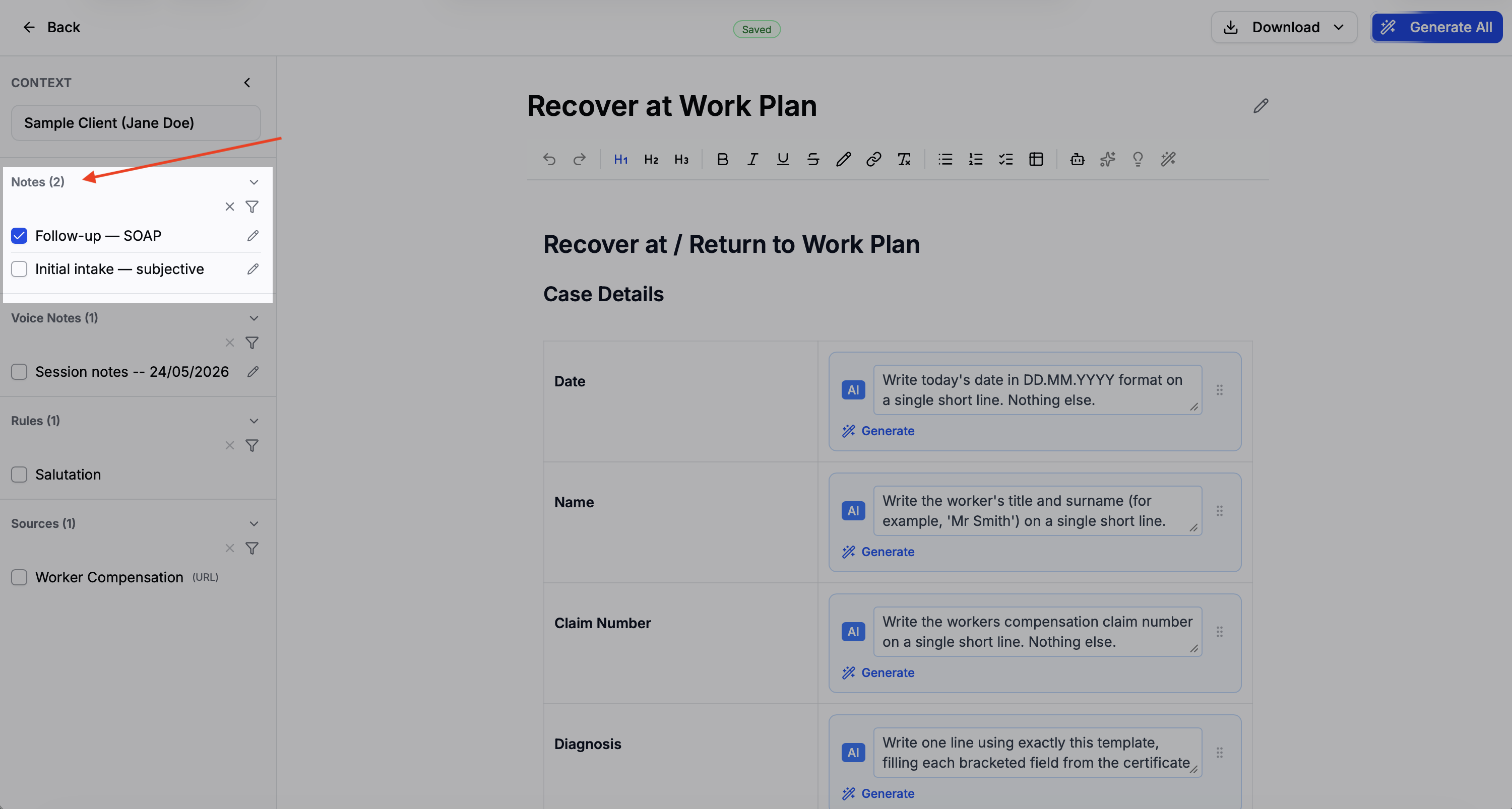
On the generate page, notes appear in the Attachments section of the context panel. Check the box next to any note to include it as context for that report.
Editing notes from the generation page
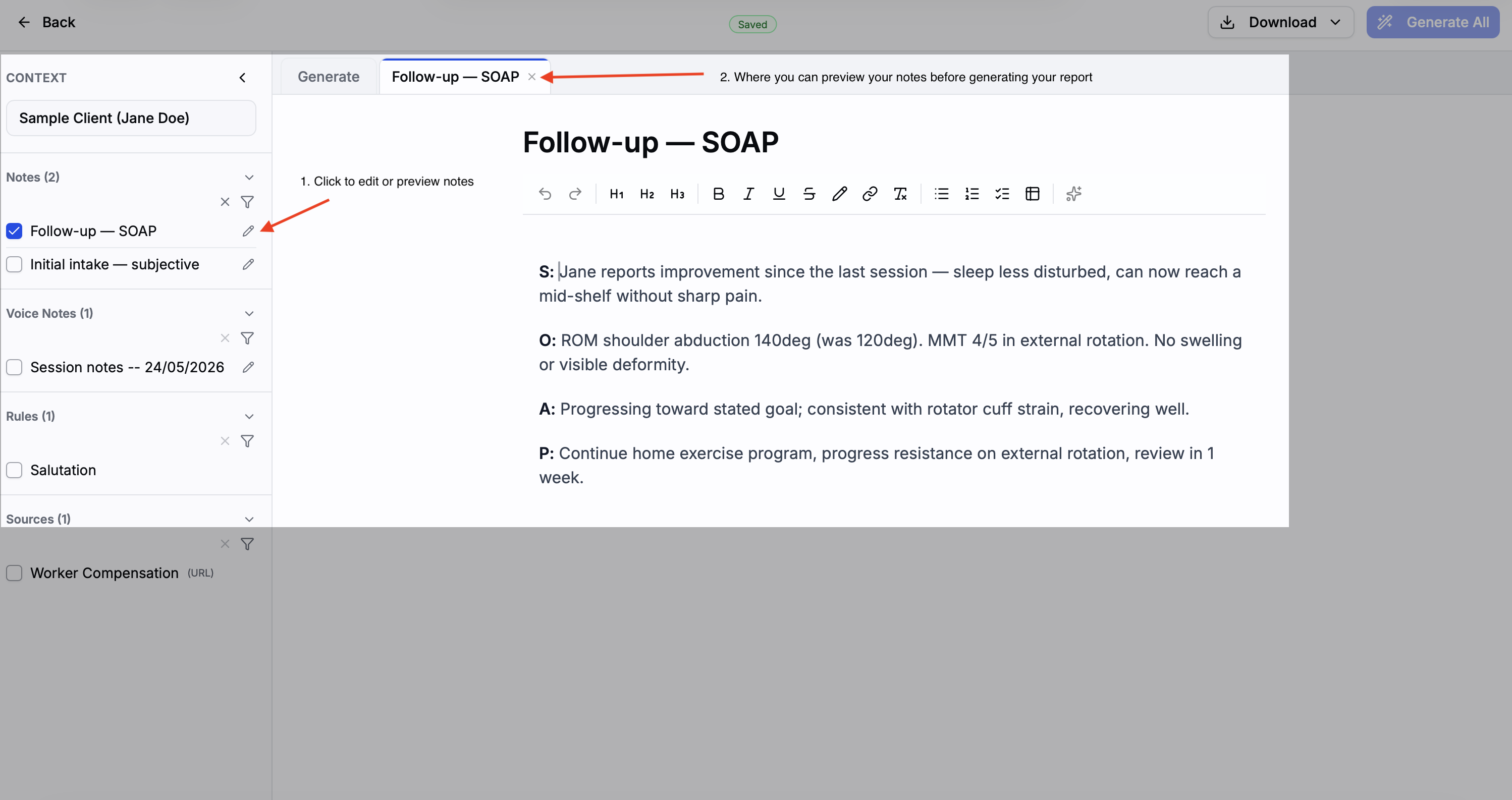
You can preview and edit any note without leaving the generation page. In the Attachments section of the context panel, click the pencil icon next to a note to open it in a side panel — make changes, save, and the updated content is used immediately when you generate.