Settings
AI Preferences
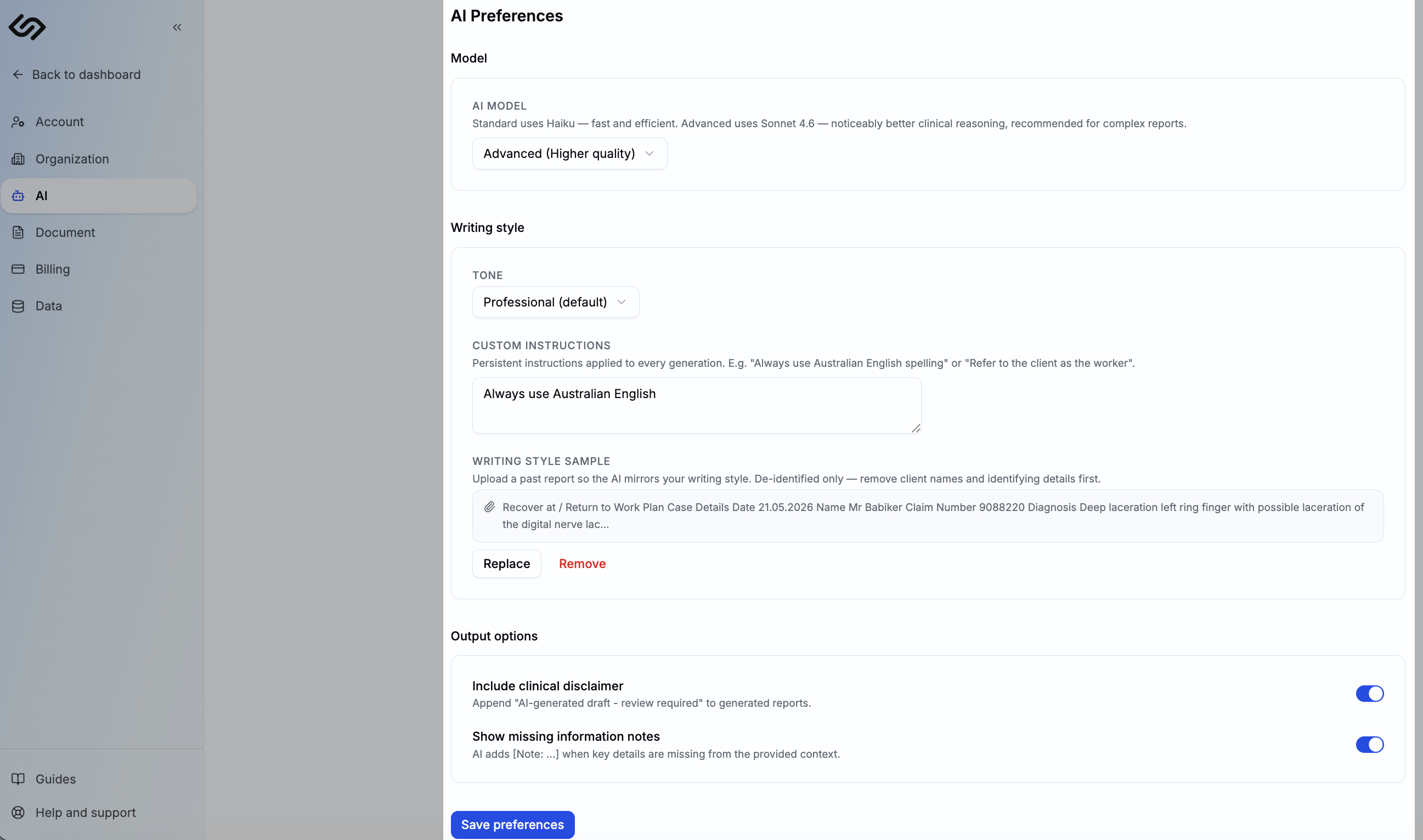
Control how the AI writes — the model it uses, the tone it adopts, and any rules that apply to every report you generate.
Found under Settings → AI. These preferences apply globally to every report you generate in Scrippio.
AI Model
Choose the model based on the complexity of the report:
- Standard (Fast) Quick turnaround, suitable for routine progress notes and straightforward reports.
- Advanced (Higher quality) Noticeably better clinical reasoning and more nuanced output.
Tone
Sets the register the AI uses across all generated sections:
- Professional — default clinical voice. Suitable for most NDIS and WorkCover reports.
- Concise — shorter paragraphs, minimal filler. Good if your reports tend to run long.
- Detailed — thorough clinical reasoning with more explanation. Better for complex assessments where the reader needs context.
- Plain language — accessible to non-clinicians. Useful for client-facing reports or when writing for a GP or carer audience.
Custom instructions
Persistent rules applied to every generation alongside your template prompts. Use this for anything that should apply across all your reports:
- "Always use Australian English spelling"
- "Refer to the client as the worker"
- "Do not use the word 'individual' — use 'client'"
- "Avoid passive voice where possible"
Keep instructions short and specific — a few precise rules are more effective than a long paragraph of general guidance.
Output options
- Include clinical disclaimer — appends "AI-generated draft — review required" to generated reports. Leave this on while you're getting familiar with the tool.
- Show missing information notes — when the AI can't complete a section because key details are absent, it adds a
[Note: ...]flag instead of guessing. Useful for catching gaps before you finalise.
Tip: After changing your tone or custom instructions, generate a short test report to see the difference before committing to the new setting for all reports.